Revise Library Content
Revise and rewrite existing content in the library. Create and share your own prompts in addition to the suggested AI Assist prompts that are already available. Clean up content for RFPs, proposals, and presentations directly in your library.
Caution: Revising with AI Assist in the library is only recommended for simple content that does not contain multiple styles and/or graphics. Once revised text is accepted, the changes are saved to the library, which may overwrite any existing styles and graphics.
Revising content records
To revise library content with AI Assist, ensure that the user has "Edit" content permissions and that the "Allow User to Use Revise with AI Assist in Library" user permission has been enabled.
- Navigate to the library and locate the desired content record.
- Click the More Options
 menu and select Edit Content > Revise with AI Assist. The "Revise with AI Assist" page will be displayed.
 - Click Preview and Accept to open the side-by-side comparison of the old and new content. From here, you can preview, download, and copy the content before accepting the revision.
Note: Revising library content with AI Assist counts as an "Edit" and checks out the content.
 Using suggested prompts
The suggested prompts can be included in the selection of the 6 most recently used prompt cards, which are displayed in the center of the "Revise with AI Assist" page.
- Select one of the following suggested prompts by clicking its card. The AI-generated content will be displayed.
- Active Voice: Rewrite the text in an active voice.
- Grammar and Spelling Check: Review the text and list any spelling or grammar errors, then separately rewrite the text using those suggestions.
- Persuasive: Rewrite the text to be professional and persuasive.
- Shorten by Characters: Rewrite the text to be <<1000>> characters or less, preserving the relevant details and any numbering/paragraphs. You can replace the default ,<<1000>>, with your desired number of characters.
- Shorten by Words: Rewrite the text to be <<200>> words or less, preserving the relevant details and any numbering/paragraphs. You can replace the default ,<<200>>, with your desired number of words.
- Translate: Translate the text to <<French>>, preserving any numbering/paragraphs. You can replace the default ,<<French>>, with your desired language.
- Do any of the following with the AI-generated content:
- Copy: Click the Copy
 icon to copy the response to your clipboard.
 - Download: Click the Download
 icon to download the response as a document file. Enter the File Name into the "Download Response" dialog and click Download.
 - Regenerate: Click Regenerate to rewrite the generated content.
- Accept: Click Accept to use the AI-generated revision in your RFP answer, overwriting the original content in the answer slice. The first style used in your original content will be maintained.
- Preview and Accept: Opens a side-by-side comparison of the old and new content. From here, you can preview, download, and copy the content before accepting the revision.
- Add to My Prompts List: Hover over the prompt and click the Add to My Prompts List
 icon to add this to your list of saved prompts.
 - Delete: Hover over the prompt and click the Delete
 icon on a prompt to remove that prompt and generated content from the thread.
 - Clear All: Click Clear All to delete the entire thread (prompt, generated content, etc.).
- Copy: Click the Copy
Creating new prompts
You can enter a new prompt if none of the suggested prompts suit your needs.
- Enter your prompt into the text box at the bottom of the page.
- Click the Submit
 icon. The AI-generated content will be displayed.
 - Do any of the following with the AI-generated content:
- Copy: Click the Copy icon to copy the response to your clipboard.
- Download: Click the Download icon to download the response as a document file. Enter the File Name into the "Download Response" dialog and click Download.
- Regenerate: Click Regenerate to rewrite the generated content.
- Accept: Click Accept to use the AI-generated revision in your RFP answer, overwriting the original content in the answer slice. The first style used in your original content will be maintained.
- Preview and Accept: Opens a side-by-side comparison of the old and new content. From here, you can preview, download, and copy the content before accepting the revision.
- Copy: Click the Copy
- Add to My Prompts List: Hover over the prompt and click the Add to My Prompts List icon to add this to your list of saved prompts.
- Delete: Hover over the prompt and click the Delete icon on a prompt to remove that prompt and generated content from the thread.
- Clear All: Click Clear All to delete the entire thread (prompt, generated content, etc.).
Note: When a new prompt is saved, it will automatically appear at the top of the list of recently used prompts.
Saving and sharing prompts
You can save and share prompts with others.
Note: The "Allow user to share AI Assist Prompts with other users/roles (by role membership)" permission must be enabled to share prompts with others.
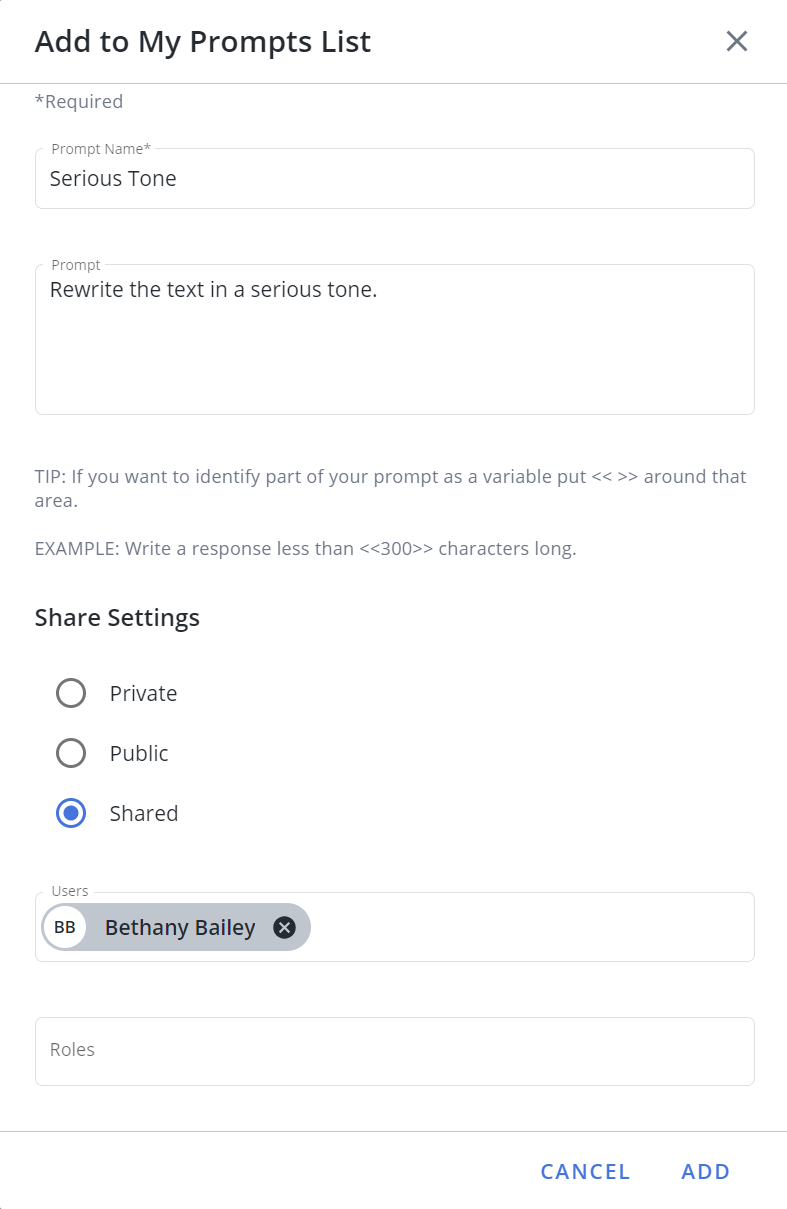
Example of the Add to My Prompts List dialog where "Shared" was selected as the "Share Settings" option. Click image to enlarge.
- Enter your prompt into the text box at the bottom of the page and click the Submit icon.
- Click the Add to My Prompts List icon. The "Add to My Prompts List" dialog will be displayed.
- Enter a Prompt Name.
- (Optional) Update the Prompt if needed.
- Choose one of the following Share Settings:
- Private: This option makes the saved prompt only visible to you and appears under the "My" prompts area.
- Public: This option makes the saved prompt visible to all users in your organization.
- Shared: This option allows you to share the prompt with users and/or roles that share the same role membership. To share Prompts with users and/or roles that do NOT share the same role membership, the "Share to All Roles/Users - User is not limited to Roles they are in when sharing Workspace Templates, Saved Searches, etc." permission must also be enabled.
- Click Add.
Tip: To make a variable saved prompt you can use <<>> in place of static text. Then, you can change the value within the brackets prior to running it. For example, "shorten this text to <<200>> words".
Using saved prompts
AI Assist can save prompts for reuse. System-generated prompts are indicated by the System  icon. Shared prompts are indicated by the Shared
  icon. Your prompts are indicated by the My icon.
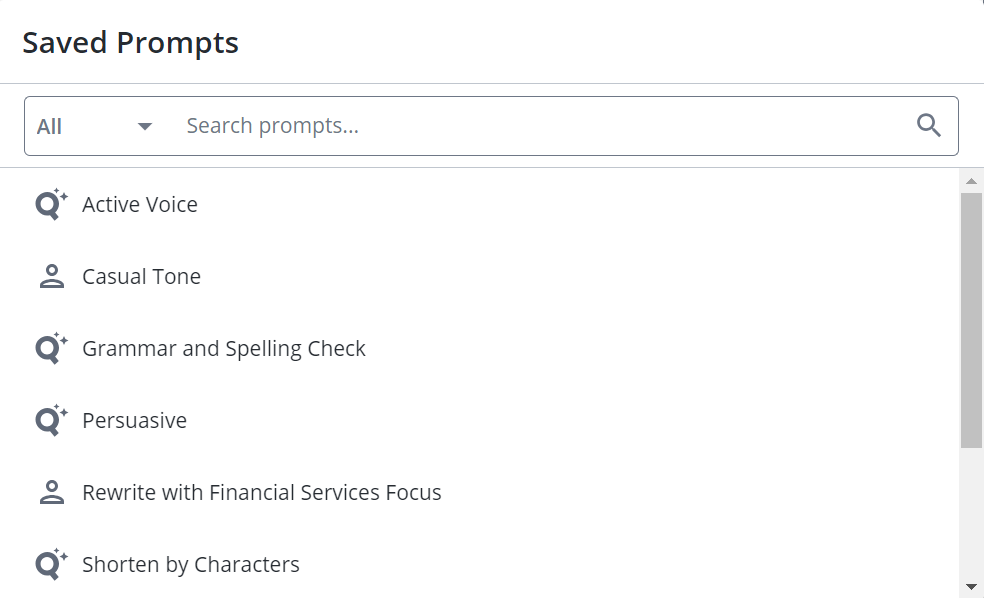
Example of the Saved Prompts dialog. Click image to enlarge.
- Click the Saved Prompts
 icon to the left of the text box. The "Saved Prompts" dialog will appear.
 - To search for a prompt, enter text and click the Search
 icon.
icon. - To filter prompts, select All, System, or My from the dropdown menu.
- Select the desired prompt.
- Do any of the following with the AI-generated content:
- Copy: Click the Copy icon to copy the response to your clipboard.
- Download: Click the Download icon to download the response as a document file. Enter the File Name into the "Download Response" dialog and click Download.
- Regenerate: Click Regenerate to rewrite the generated content.
- Accept: Click Accept to use the AI-generated revision in your RFP answer, overwriting the original content in the answer slice. The first style used in your original content will be maintained.
- Preview and Accept: Opens a side-by-side comparison of the old and new content. From here, you can preview, download, and copy the content before accepting the revision.
- Copy: Click the Copy
- Add to My Prompts List: Hover over the prompt and click the Add to My Prompts List icon to add this to your list of saved prompts.
- Delete: Hover over the prompt and click the Delete icon on a prompt to remove that prompt and generated content from the thread.
- Clear All: Click Clear All to delete the entire thread (prompt, generated content, etc.).
Editing saved prompts
Users can edit their saved prompts; and with the correct permissions, prompts owned by other users.
Note: To edit prompts owned by other users that share the same role membership, the "Allow user to manage AI Assist prompts owned by other users (by Role)" permission must be enabled. To edit prompts owned by other users, regardless of role membership, the "Allow user to manage AI Assist prompts owned by other users" permission must be enabled.
- Click the Saved Prompts icon to the left of the text box. The "Saved Prompts" dialog will be displayed.
- To search for a prompt, enter text and click the Search icon.
- To filter prompts, select All or My from the dropdown menu.
- Hover over the desired prompt and click the Edit
 icon. The "Edit My Prompt" dialog will be displayed.
 - Update the Prompt Name and Prompt as desired.
- Update the Share Settings as desired:
- Private: This option makes the saved prompt only visible to you and appears under the "My" prompts area.
- Public: This option makes the saved prompt visible to all users in your organization.
- Shared: This option allows you to share the prompt with users and/or roles that share the same role membership. To share Prompts with users and/or roles that do NOT share the same role membership, the "Share to All Roles/Users - User is not limited to Roles they are in when sharing Workspace Templates, Saved Searches, etc." permission must also be enabled.
- Click Save.
Caution: System prompts cannot be edited.
Note: You can delete a prompt by hovering over the desired prompt and clicking the Delete icon. If the prompt was created by another user, it will only be deleted in your instance.
Applying Tone & Terms
Enabled Tone and Terms will be applied automatically when revising with AI Assist. Users have the option to disable Tone and Terms for a given Revise session via the "Allow user to see the toggle to temporarily disable/enable the Admin-configured Tone and Terms for an AI Assist Revision session" permission, which is disabled by default.
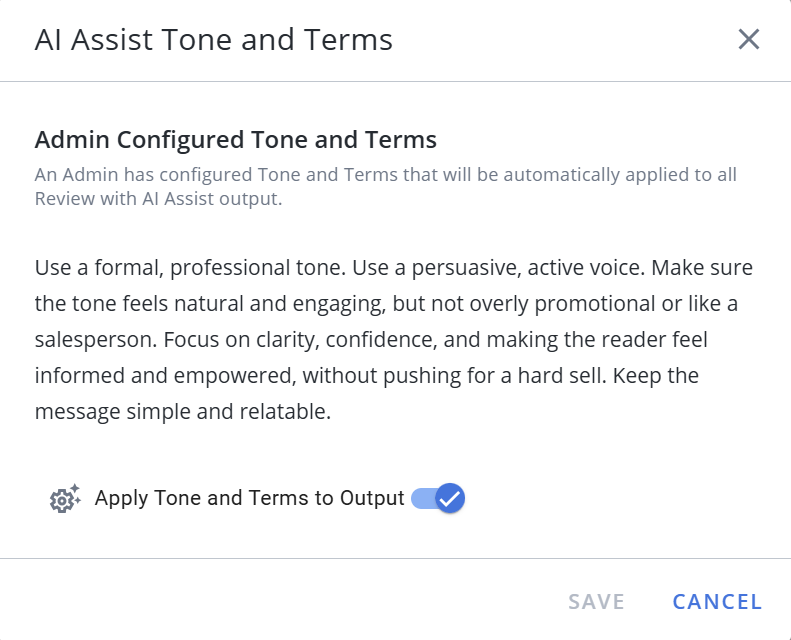
The AI Assist Tone and Terms dialog. Click image to enlarge.
- If the "Allow user to see the toggle to temporarily disable/enable the Admin-configured Tone and Terms for an AI Assist Revision session" permission has been enabled, the AI Assist Tone and Terms
 icon will display next to the prompt text field.
 - Click the AI Assist Tone and Terms icon. The "AI Assist Tone and Terms" dialog will display.
- Toggle the Apply Tone and Terms to Output setting to enable or disable admin-configured Tone and Terms. If disabled, Tone and Terms will remain turned off for that revision session. Tone and Terms will be reset to "On" once a new revision session is opened.
Tip: When the Apply Tone and Terms to Output setting is enabled, the AI Assist Tone and Terms icon will be blue. When the Apply Tone and Terms to Output setting is disabled, the AI Assist Tone and Terms  icon will be gray.
Exclude from AI Assist
Flag content, individually or in bulk, to be excluded from consideration when writing and revising text with AI Assist.
Example: Exclude sensitive customer-specific content from being used when running AutoFill and answering with AI Assist.
Note: To flag content, select the Exclude from AI Assist checkbox on the Edit Content Properties "Details" tab. Flagged content can be easily identified with the "Exclude from AI Assist" field, which can be displayed in the following areas: library grid, library Content Summary, Review Jobs and Manage Review Jobs Content Summary, Submit Content pages, and Analytics views and data sources.
Caution: This feature is NOT available in Qvidian for Office / Qvidian for Web.